Get up and running in four short steps — plus an optional fifth to add live data.
The core setup takes about five minutes — four steps, the same flow whether you're trying StrategyXL for the first time or moving to a new machine. An optional fifth step adds live data from your own broker.
Close Excel if it's open, then download StrategyXL.msi and run it. Installation is per-user — no Windows admin prompt, and the add-in stays scoped to your user account. Excel will pick it up automatically the next time you open it. The same download link is also in your purchase email.
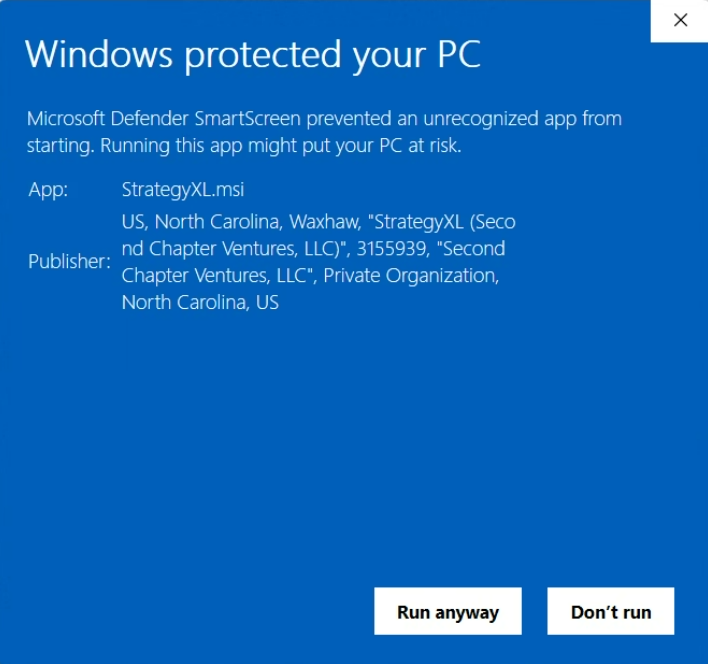
On first run, Windows may show a blue "Windows protected your PC" dialog. This is expected, not a malware warning. StrategyXL is signed with a valid SSL.com EV code-signing certificate issued to Second Chapter Ventures, LLC (dba StrategyXL); new signed releases just need to accumulate download volume before Windows clears the warning automatically. To proceed: click More info, then Run anyway.
Files install into
%LOCALAPPDATA%\StrategyXL\
only. No system folders touched, no admin/UAC prompt.
First, close all Excel windows and reopen Excel. If still
missing: File → Options → Add-ins. At the
bottom, set Manage to
Excel Add-ins and click Go.
Confirm StrategyXL is checked. If it's not
in the list, click Browse and select
StrategyXL64.xll
from
%LOCALAPPDATA%\StrategyXL\.
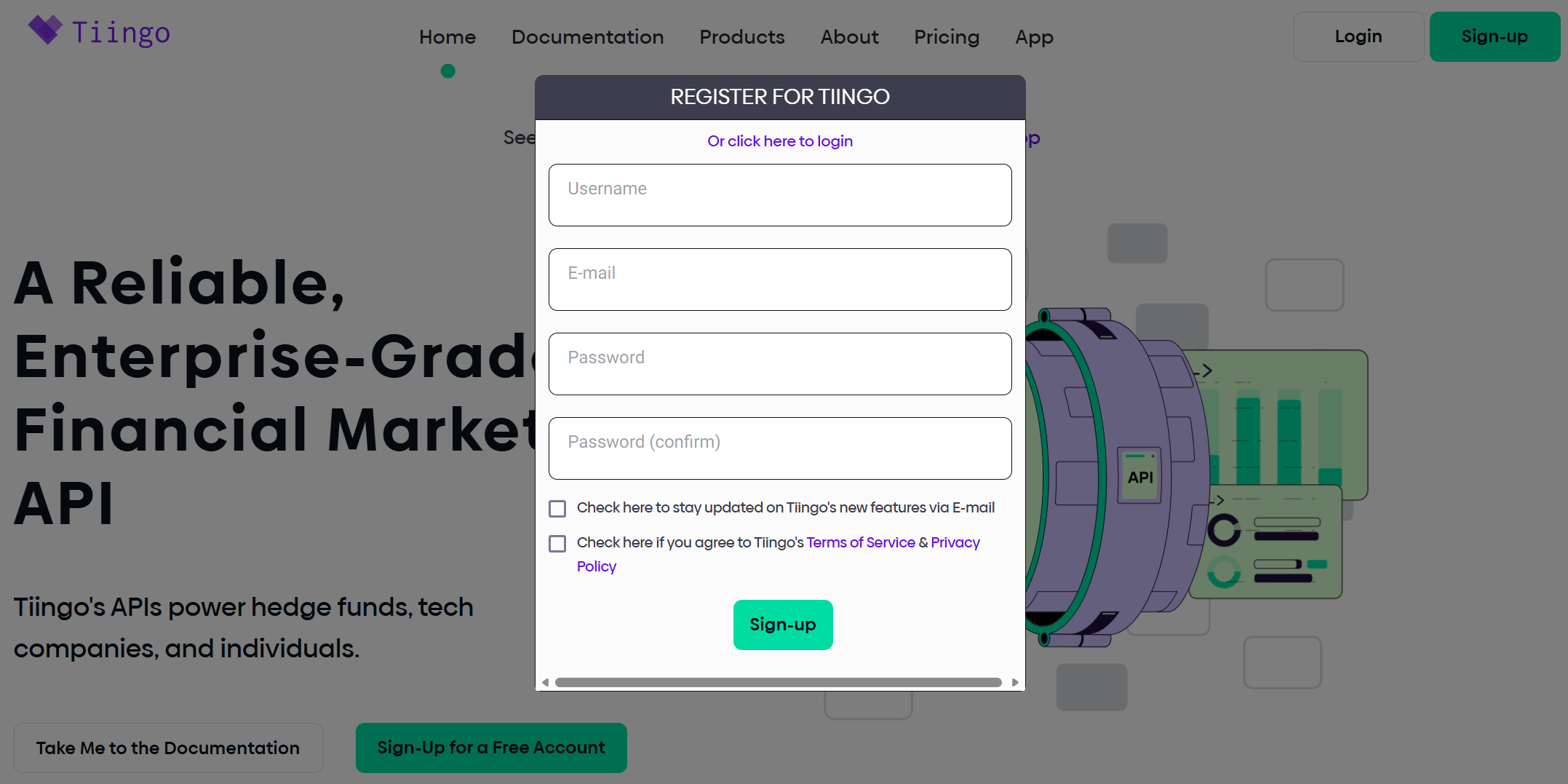
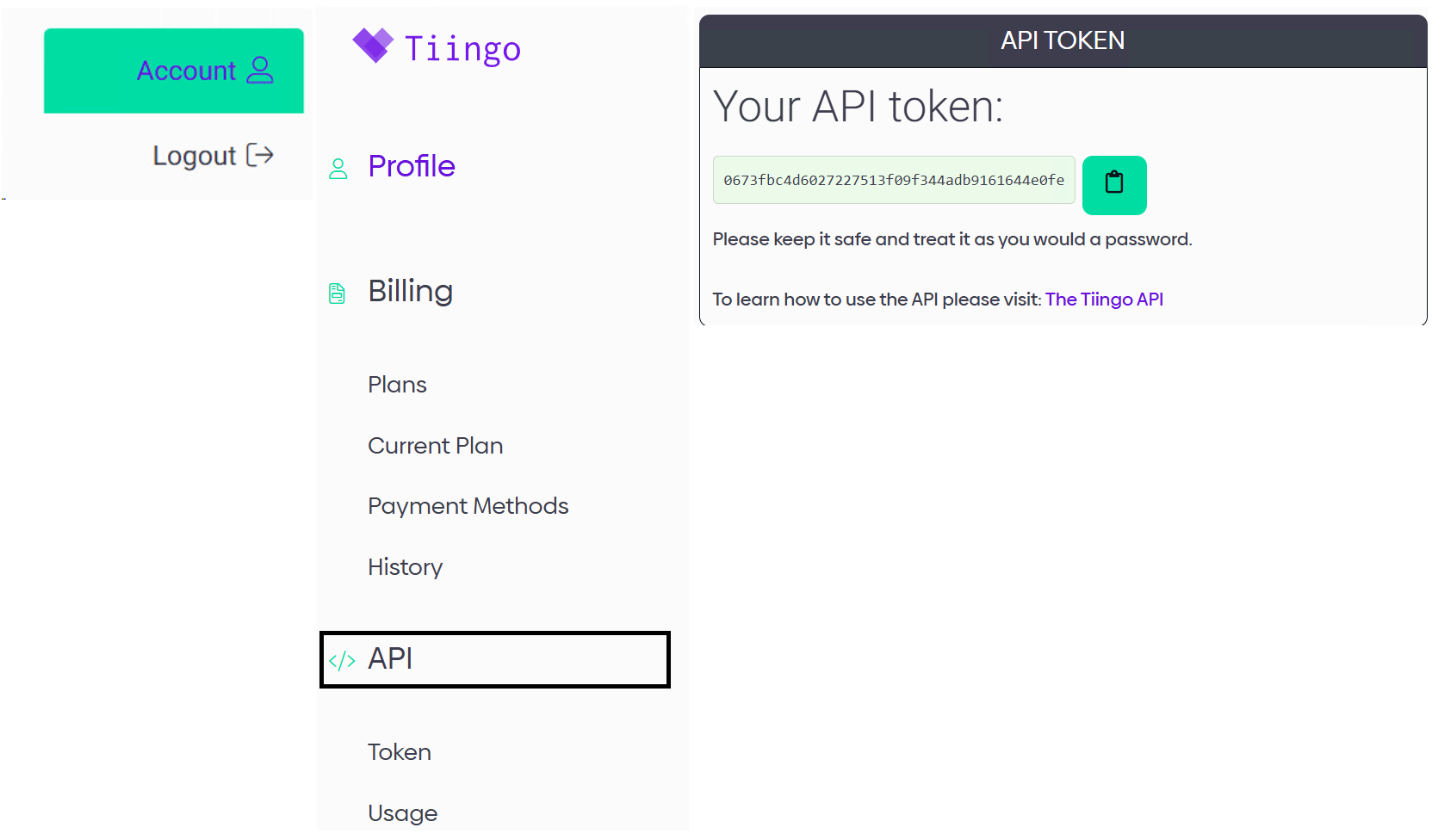
StrategyXL uses Tiingo for market data — bring-your-own model, so the data flows directly from Tiingo to your spreadsheet without passing through us. Sign up at tiingo.com (the free tier is plenty for normal use) and copy your API token from the dashboard.
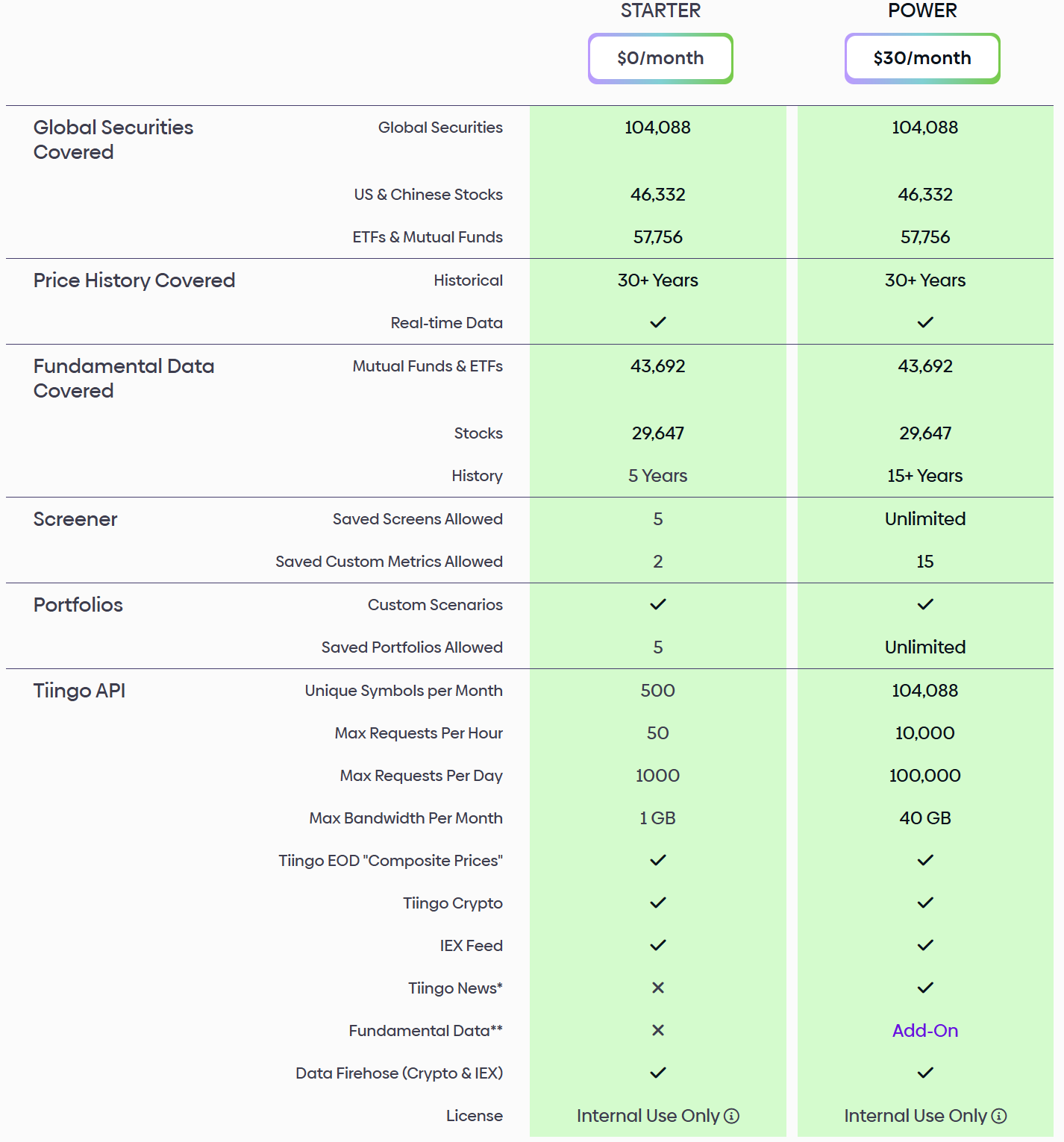
The free Starter plan covers 30+ years of historical end-of-day prices on U.S. stocks and ETFs (over 100,000 symbols total), 500 unique symbols per month, 50 requests per hour, and 1 GB of bandwidth per month. That's plenty for typical personal use. If you batch across many tickers or run long historical backtests, Tiingo's paid plans lift those caps.
Your API token stays on your machine in a local SQLite database under your user profile. StrategyXL never sees it — it only travels between your copy of Excel and Tiingo's servers.
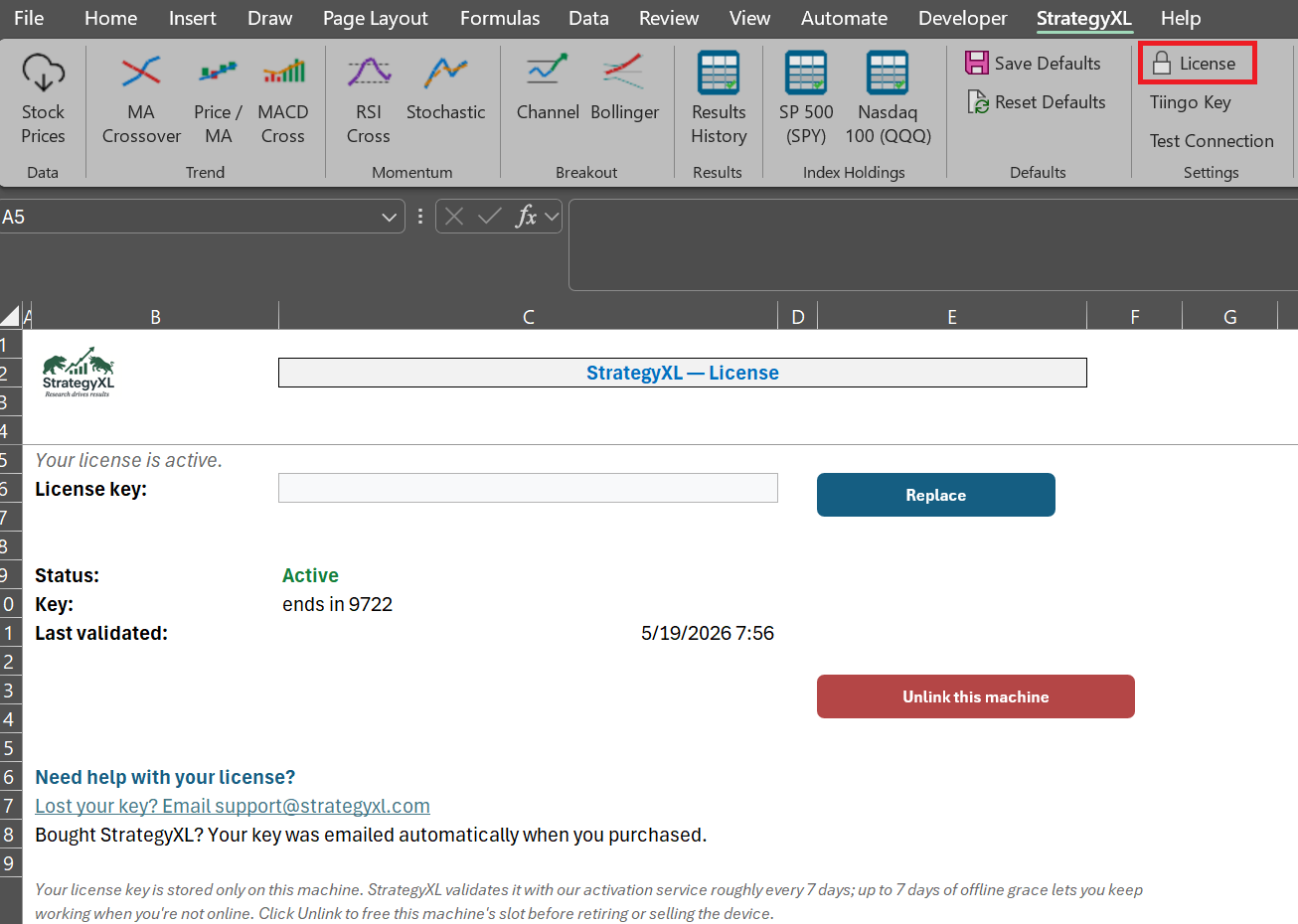
Open Excel — the StrategyXL ribbon tab appears automatically. Click License, paste your license key (it arrives by email after purchase) into the input box, and click Activate. The dialog shows Active once it succeeds.
Your license activates on up to two machines (e.g. a laptop and a desktop). To move to a different machine later, click Unlink this machine on the License dialog first to free a slot.
Your key is sent automatically after purchase by Lemon Squeezy. If you don't see it within a few minutes, check your spam/junk folder. Still missing? (from the address you purchased with) and we'll resend it.
Two buttons live on the License dialog. Replace swaps to a different key on this same machine (e.g. if you upgrade plans). Unlink this machine frees this device's activation slot so you can activate a different one in its place.
StrategyXL silently checks back with the licensing server about once a week to confirm your key is still in good standing. If you're offline when the check is due, you get a 7-day grace window before the ribbon locks itself, so a vacation, plane trip, or temporary outage won't disrupt your work.
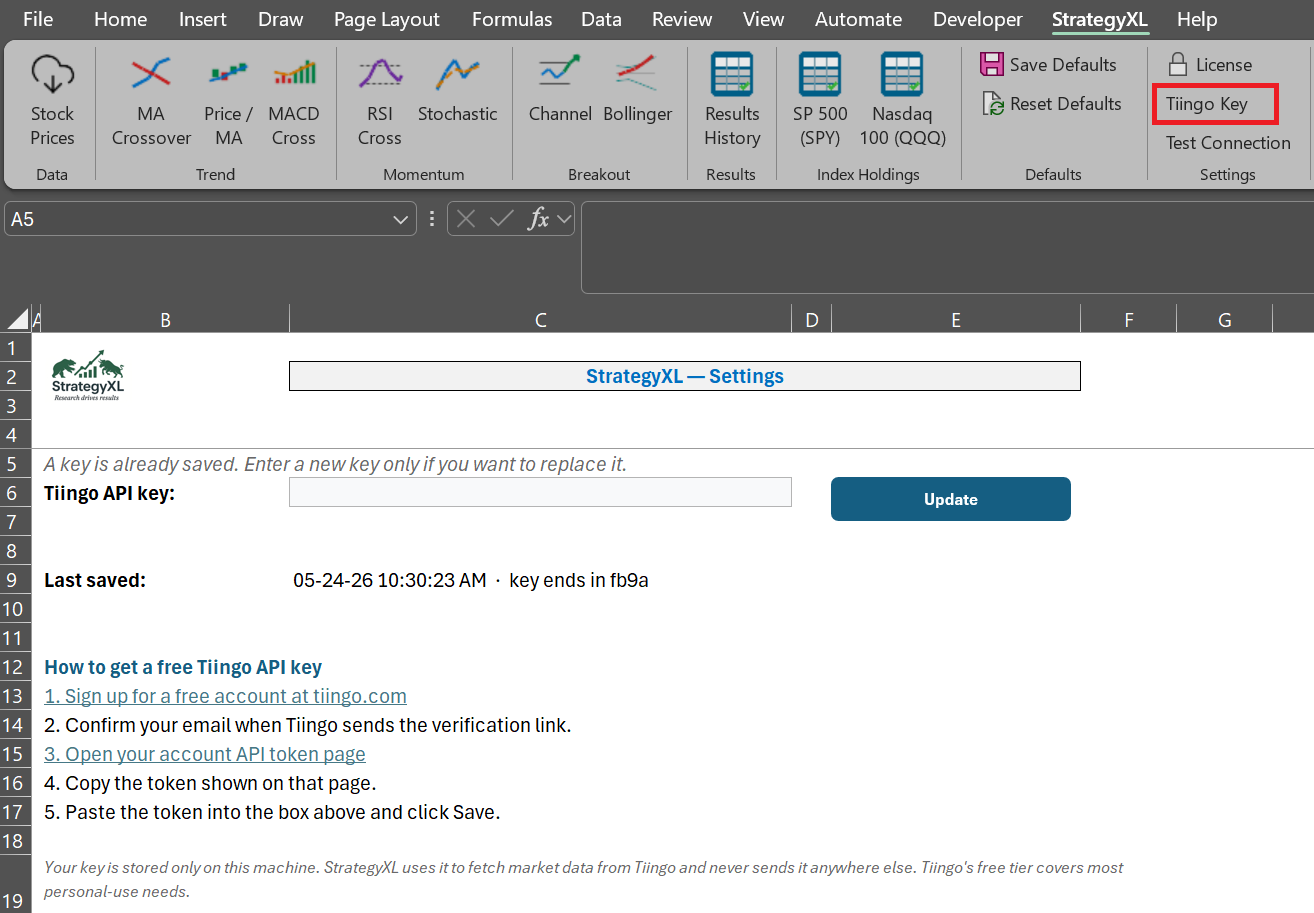
Click Tiingo Key on the ribbon. Paste the API token you copied in step 2, then click Save. This is a one-time setup per machine — every feature that needs market data uses this key from now on. To confirm the key works before exploring features, click Test Connections on the ribbon — you'll get a quick OK/fail message.
You're fully set up after step 4 — everything runs on Tiingo's end-of-day data. Connect your own Charles Schwab account and StrategyXL comes alive with real-time, read-only market data: no ThinkOrSwim or other desktop app running, your credentials encrypted on your own PC, and never any order or account access.
What it unlocks:
=sXL_Live_* formulas and a Watchlist that updates on every quoteIt's a one-time, read-only setup of about ten minutes. Follow the Schwab connection guide →
For your first try, click Stock Price History on
the ribbon. Enter a ticker like AAPL, pick a date range,
and click Run. You'll get formatted OHLCV data, dividends, splits,
and seven indicator charts in a few seconds — that loop (load,
analyze, iterate) is the foundation of everything else in the
product.
From there, explore the rest of the ribbon at your own pace. Stock Backtest is the deepest feature — full rules-based strategies with composable entry and exit conditions, run across years of historical bars.
. Every message gets a real reply.